Have you ever taken the “perfect” photo, only to realize later that there is an annoying photobomber in the background? Or perhaps a distracting power line is ruining your beautiful sunset shot? In the past, removing these “masks” or unwanted objects required hours of tedious work in Photoshop.
Fast forward to 2026, and AI Mask Remove editing has changed the game completely. With just a few taps on your smartphone, you can intelligently erase any object while the AI fills in the background perfectly.
At ApkMale, we specialize in bringing you the most advanced mobile tools to make your creative life easier. Whether you are a social media influencer or just someone who wants cleaner vacation photos, this guide will show you how to master AI masking.
What is AI Mask Remove Editing?
AI Masking is a technology where Artificial Intelligence identifies a specific part of an image (the “mask”) and separates it from the rest. When we talk about “Mask Remove” editing, we are usually referring to two things:
- Object Removal: Deleting an unwanted person or item from a photo.
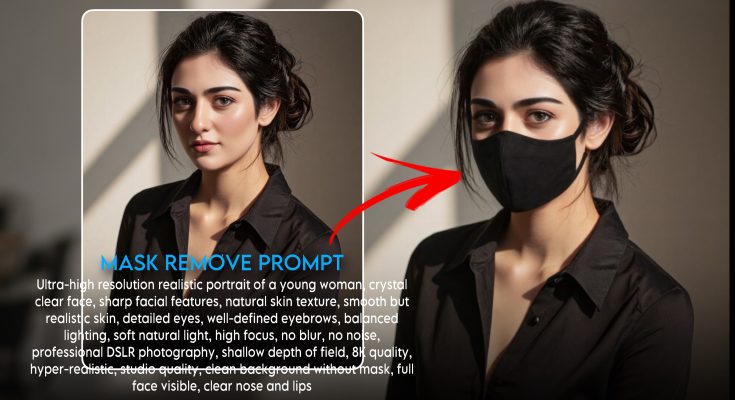
- Face Mask Removal: Using AI to reconstruct facial features that might be covered by a physical mask or an accidental blur.
The magic happens through Generative AI. Instead of leaving a hole in your photo, the software looks at the surrounding pixels and “paints” a new background that looks 100% natural. Using tools found on ApkMale, even a complete beginner can achieve professional-grade results.
The Best Tools for AI Mask Removal in 2026
To get the best results, you need the right software. Here are the top picks that have revolutionized editing this year:
1. Magic Eraser (Standard in High-End Phones)
Most flagship phones now come with this built-in. It uses a “point and click” method to identify masks and remove them instantly.
2. Retouch AI (Available on ApkMale)
This is a dedicated app for object removal. It is famous for its “Inpainting” algorithm, which is great for complex backgrounds like forests or crowded streets.
3. Adobe Firefly Mobile
Adobe’s AI integration allows for “Generative Fill.” You can remove a mask and replace it with something else entirely just by typing a text prompt.
Step-by-Step Guide: How to Remove a Mask Using AI
Follow these simple steps to clean up your photos using the latest tools available on ApkMale:
Step 1: Upload Your Image
Open your preferred AI editing app and select the photo you want to fix. Make sure the photo is high-resolution for the AI to work accurately.
Step 2: Select the “Mask” or “Object” Tool
Look for an icon that looks like a brush or a lasso. This is your “Masking” tool.
Step 3: Highlight the Unwanted Area
Carefully paint over the object you want to remove. Most modern AI tools will “snap” to the edges of the object automatically, making it easy for beginners.
Step 4: Process the Removal
Tap the “Remove” or “Erase” button. The AI will analyze the textures around the mask and generate a replacement background.
Step 5: Fine-Tuning
If the edges look a bit blurry, use the “Clone Stamp” or “Healing” tool to touch up the small details.
Step 6: Export and Save
Save your photo in PNG or JPEG format. With ApkMale‘s premium versions of these apps, you can often export in 4K quality without any watermarks.
Benefits of Using AI Mask Remove Tools
Why should you switch to AI-based editing instead of traditional methods?
- Speed: What used to take 30 minutes now takes 3 seconds.
- Accuracy: AI understands lighting and shadows better than the human eye can manually replicate.
- Accessibility: You don’t need a $2,000 PC. You can do this on a mid-range Android or iPhone.
- Creativity: By removing distractions, you can focus the viewer’s attention exactly where you want it.
At ApkMale, we have seen thousands of users transform “okay” photos into viral masterpieces using these simple AI features.
Common Problems & Solutions
Problem: The background looks “smudged” after removal.
- Solution: This happens if the AI doesn’t have enough data. Try selecting a smaller area around the object, or use the “Manual Repair” tool to fix the smudged texture.
Problem: The app crashes when processing heavy AI tasks.
- Solution: AI editing requires a lot of RAM. Close all other apps and ensure your phone isn’t in “Battery Saver” mode, which limits CPU power.
Problem: The “AI” is removing parts I want to keep.
- Solution: Use the “Deselect” brush to remove the highlight from areas you want to protect before hitting the erase button.
How AI Masking Impacts Privacy and Ethics
As we discuss on ApkMale, with great power comes great responsibility. AI Mask Remove editing should be used for:
- Improving aesthetics (removing trash, wires, or photobombers).
- Restoring old, damaged family photos.
- Creative digital art.
It should not be used to create misleading content or “Deepfakes” without consent. Always follow ethical guidelines when sharing edited photos online.
Frequently Asked Questions (FAQs)
1. Is AI Mask Remove editing free? Many apps offer a basic free version, but for high-resolution exports and advanced AI, you usually need a premium subscription. You can find many feature-unlocked versions on ApkMale.
2. Can AI remove a face mask from a person’s face? Yes, some advanced “Face Restoration” AIs can predict facial features under a mask, though the result is an AI’s “best guess” and might not be 100% accurate to the real person.
3. Does removing objects lower the photo quality? If you use a high-quality app, the resolution stays the same. However, some free online tools compress the image, which can lower the quality.
4. Can I remove watermarks using AI Masking? Technically, yes, but it is ethically wrong to remove a creator’s watermark. Use these tools only on your own original content.
5. Which is the best app for beginners on ApkMale? For beginners, we recommend “SnapEdit” or “Retouch.” They have the simplest interfaces and very powerful AI engines.
Conclusion
The era of complicated photo editing is over. AI Mask Remove editing has democratized the ability to create perfect, distraction-free images. By using the tools and techniques discussed here and exploring the latest updates on ApkMale, you can turn any average snapshot into a professional work of art.
Remember, the best edit is the one that no one notices. So, keep your adjustments subtle, let the AI do the heavy lifting, and enjoy your clean, beautiful photos!